---
title: Review an outline of your Mind Map inside Document View
description: For a linear overview of all Mind Map content in one simplified view
---
[Skip to content](https://support.ayoa.com/review-an-outline-of-your-mind-map-inside-document-view#main-content)
English
Show submenu for translations
[More support](https://support.ayoa.com/kb-tickets/new?hsLang=en)
[](https://ayoa.com/)
Open main navigation
Close main navigation
- English
Show submenu for translations
- [More support](https://support.ayoa.com/kb-tickets/new)
- [Sign in to AYOA](https://app.ayoa.com/)
[Sign in to AYOA](https://app.ayoa.com/)
How can we help you?
- There are no suggestions because the search field is empty.
1. [Help Centre](https://support.ayoa.com/?hsLang=en)
2. [Mind Maps](https://support.ayoa.com/mind-maps?hsLang=en)
3. [How to use Mind Maps on the Web / Desktop](https://support.ayoa.com/mind-maps?hsLang=en#how-to-use-mind-maps-on-the-web-desktop)
July 28, 2025
# Review an outline of your Mind Map inside Document View
## For a brief linear overview of all Mind Map content in one simplified format
Use the Document View tool inside your Mind Map to see an overview of all detail in linear format
Click on the Outline View icon in the top right hand corner of your Mind Map board:
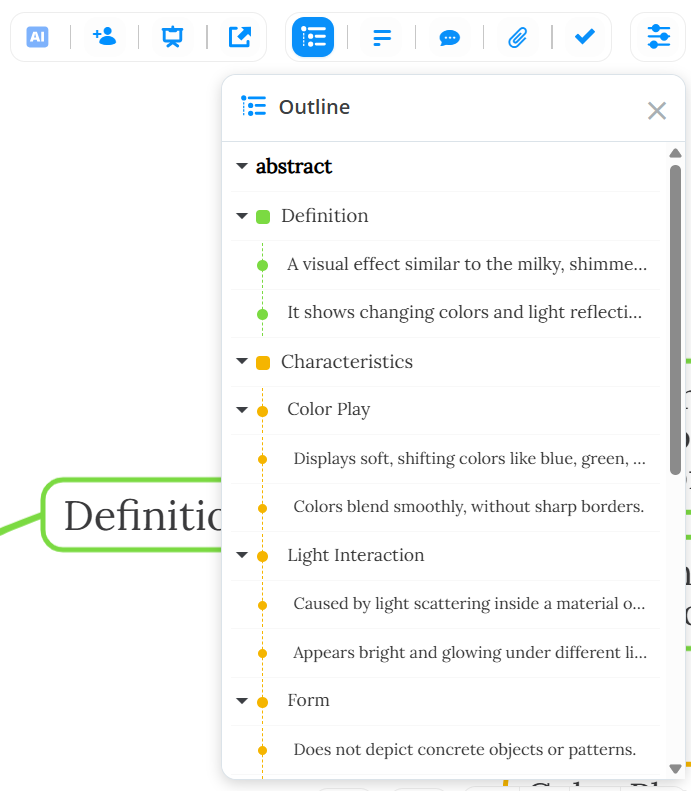
Any changes you make to your Mind Map will appear here as well. As you add content to your project you'll be able to see your ideas as linear text within this outline view.
- [Accessing AYOA](https://support.ayoa.com/accessing-ayoa?hsLang=en)
- [My AYOA Account](https://support.ayoa.com/my-ayoa-account?hsLang=en#main-content)
- [My Preferences](https://support.ayoa.com/my-ayoa-account?hsLang=en#my-preferences)
- [Managing your AYOA subscription](https://support.ayoa.com/my-ayoa-account?hsLang=en#managing-your-ayoa-subscription)
- [AYOA Team Plans](https://support.ayoa.com/ayoa-team-plans?hsLang=en)
- [AYOA Mobile](https://support.ayoa.com/ayoa-mobile?hsLang=en#main-content)
- [Account Management - Mobile](https://support.ayoa.com/ayoa-mobile?hsLang=en#account-management-mobile)
- [Ayoa Chat - Mobile](https://support.ayoa.com/ayoa-mobile?hsLang=en#ayoa-chat-mobile)
- [Mind Maps - Mobile](https://support.ayoa.com/ayoa-mobile?hsLang=en#mind-maps-mobile)
- [Task Boards and My Planner - Mobile](https://support.ayoa.com/ayoa-mobile?hsLang=en#task-boards-and-my-planner-mobile)
- [Whiteboards- Mobile](https://support.ayoa.com/ayoa-mobile?hsLang=en#whiteboards-mobile)
- [AYOA Chat](https://support.ayoa.com/ayoa-chat?hsLang=en)
- [Mind Maps](https://support.ayoa.com/mind-maps?hsLang=en#main-content)
- [Getting started with Mind Mapping in AYOA](https://support.ayoa.com/mind-maps?hsLang=en#getting-started-with-mind-mapping-in-ayoa)
- [How to use Mind Maps on the Web / Desktop](https://support.ayoa.com/mind-maps?hsLang=en#how-to-use-mind-maps-on-the-web-desktop)
- [Radial Maps](https://support.ayoa.com/mind-maps?hsLang=en#radial-maps)
- [Capture Maps](https://support.ayoa.com/mind-maps?hsLang=en#capture-maps)
- [iMindMap](https://support.ayoa.com/mind-maps?hsLang=en#imindmap)
- [Accessibility](https://support.ayoa.com/mind-maps?hsLang=en#accessibility)
- [AI](https://support.ayoa.com/ai?hsLang=en#main-content)
- [AI imports and prompts](https://support.ayoa.com/ai?hsLang=en#ai-imports-and-prompts)
- [AI Assistant](https://support.ayoa.com/ai?hsLang=en#ai-assistant)
- [Imports and Exports](https://support.ayoa.com/imports-and-exports?hsLang=en#main-content)
- [Imports](https://support.ayoa.com/imports-and-exports?hsLang=en#imports)
- [Exports](https://support.ayoa.com/imports-and-exports?hsLang=en#exports)
- [Task Management](https://support.ayoa.com/task-management?hsLang=en#main-content)
- [Task Boards](https://support.ayoa.com/task-management?hsLang=en#task-boards)
- [Workflow / Kanban](https://support.ayoa.com/task-management?hsLang=en#workflow-kanban)
- [Canvas](https://support.ayoa.com/task-management?hsLang=en#canvas)
- [Gantt Timeline](https://support.ayoa.com/task-management?hsLang=en#gantt-timeline)
- [Task Management](https://support.ayoa.com/task-management?hsLang=en#task-management)
- [Whiteboards](https://support.ayoa.com/whiteboards?hsLang=en#main-content)
- [Whiteboards](https://support.ayoa.com/whiteboards?hsLang=en#whiteboards)
[](https://ayoa.com)
[Get started for free](https://auth.ayoa.com/signup?email=)
[AYOA privacy policy](https://www.ayoa.com/privacy-policy/)
[Got a suggestion?](https://share-eu1.hsforms.com/1xuRuRa85Q-e8ya52b55HQwf4wbn)
[Our customers](https://www.ayoa.com/ourcustomers/)
Copyright © 2026, OpenGenius Ltd.