---
title: Creating an embedded document in AYOA Whiteboards
description: Create an entire document directly inside your Whiteboard effortlessly
---
[Skip to content](https://support.ayoa.com/creating-an-embedded-document-whiteboards#main-content)
English
Show submenu for translations
[More support](https://support.ayoa.com/kb-tickets/new?hsLang=en)
[](https://ayoa.com/)
Open main navigation
Close main navigation
- English
Show submenu for translations
- [More support](https://support.ayoa.com/kb-tickets/new)
- [Sign in to AYOA](https://app.ayoa.com/)
[Sign in to AYOA](https://app.ayoa.com/)
How can we help you?
- There are no suggestions because the search field is empty.
1. [Help Centre](https://support.ayoa.com/?hsLang=en)
2. [Whiteboards](https://support.ayoa.com/whiteboards?hsLang=en)
3. [Whiteboards](https://support.ayoa.com/whiteboards?hsLang=en#whiteboards)
July 28, 2025
# Creating an embedded document in AYOA Whiteboards
## Create an entire document directly inside your Whiteboard effortlessly
Watch this explainer tutorial, or follow the steps below
Are you looking to add lots of information, but you want to easily update it without leaving AYOA?
Instead of using a Word document you can utilise the Whiteboard Document Creator to add a text document embedded in the Whiteboard that can be edited at any time.
Within this document you can **style it, embed images and videos, tables and even mathematical formulas or code snippets.** The document can then be viewed in full on the Whiteboard canvas, without needing to download it or open it in a new tab.
### Creating a new document
1\. Open a Whiteboard
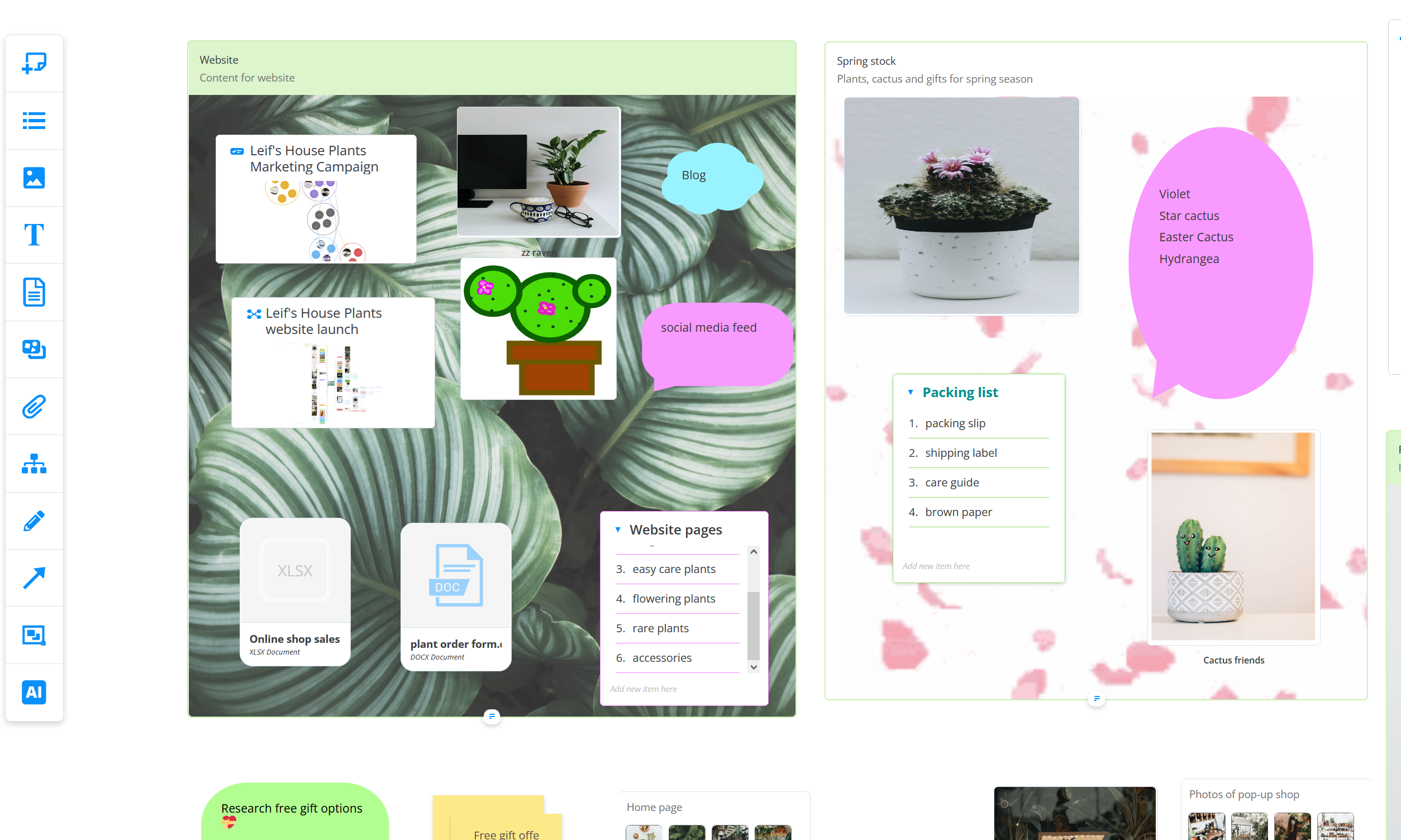
2\. Click on the **document** icon on the Whiteboard toolbar.

3\. You will be given the option to choose how **large** you want the document to be. This will be how much space the document takes on the canvas.
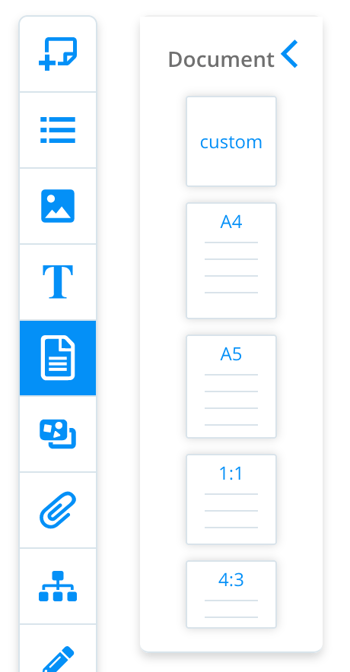
4\. Drag the chosen **size** onto the canvas.
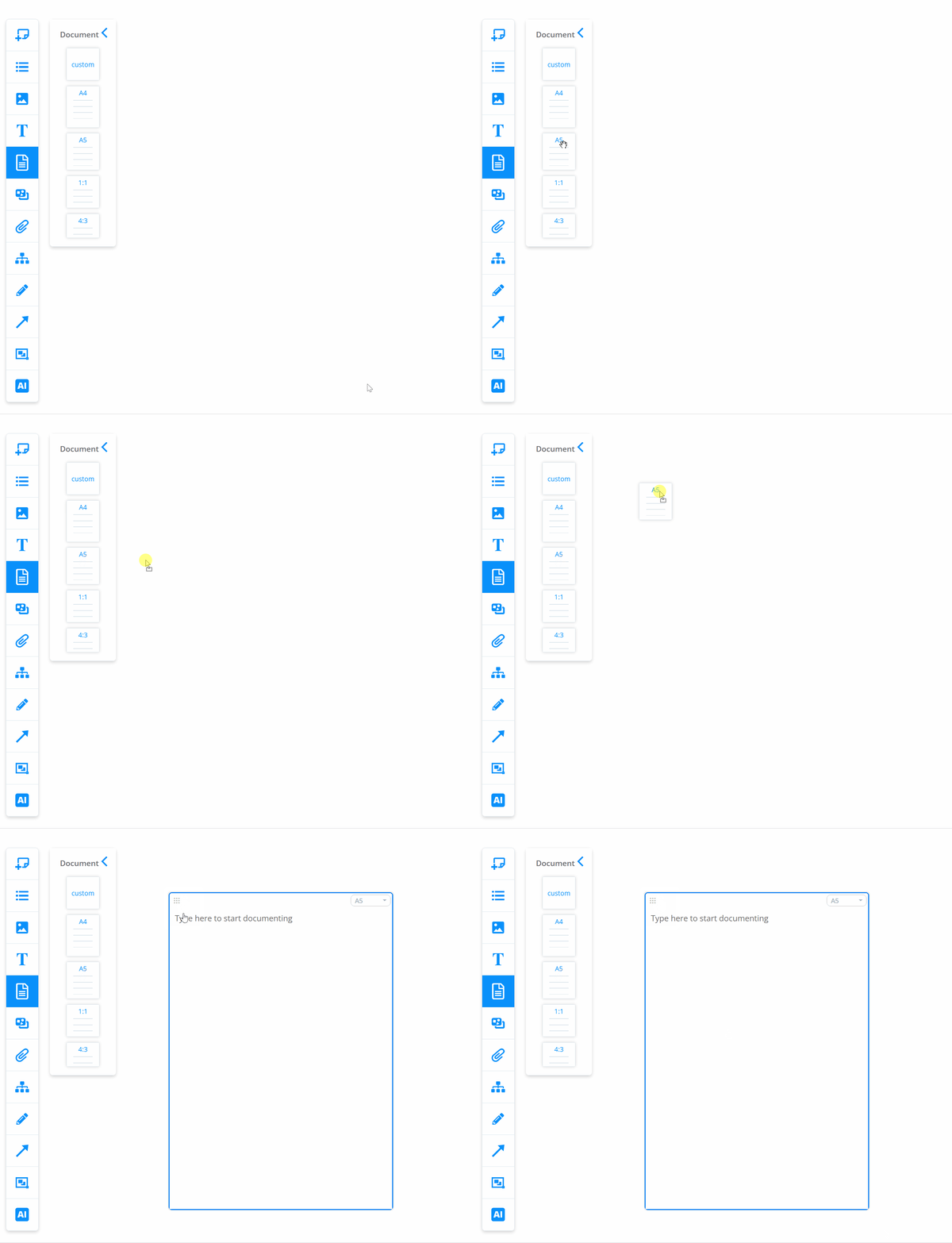
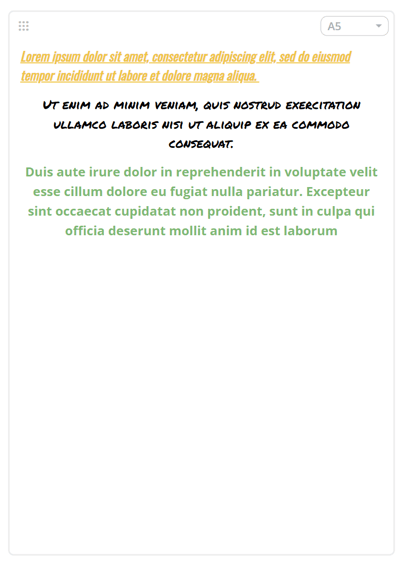
5\. **Double-click** to open up the text pad and formatting options.
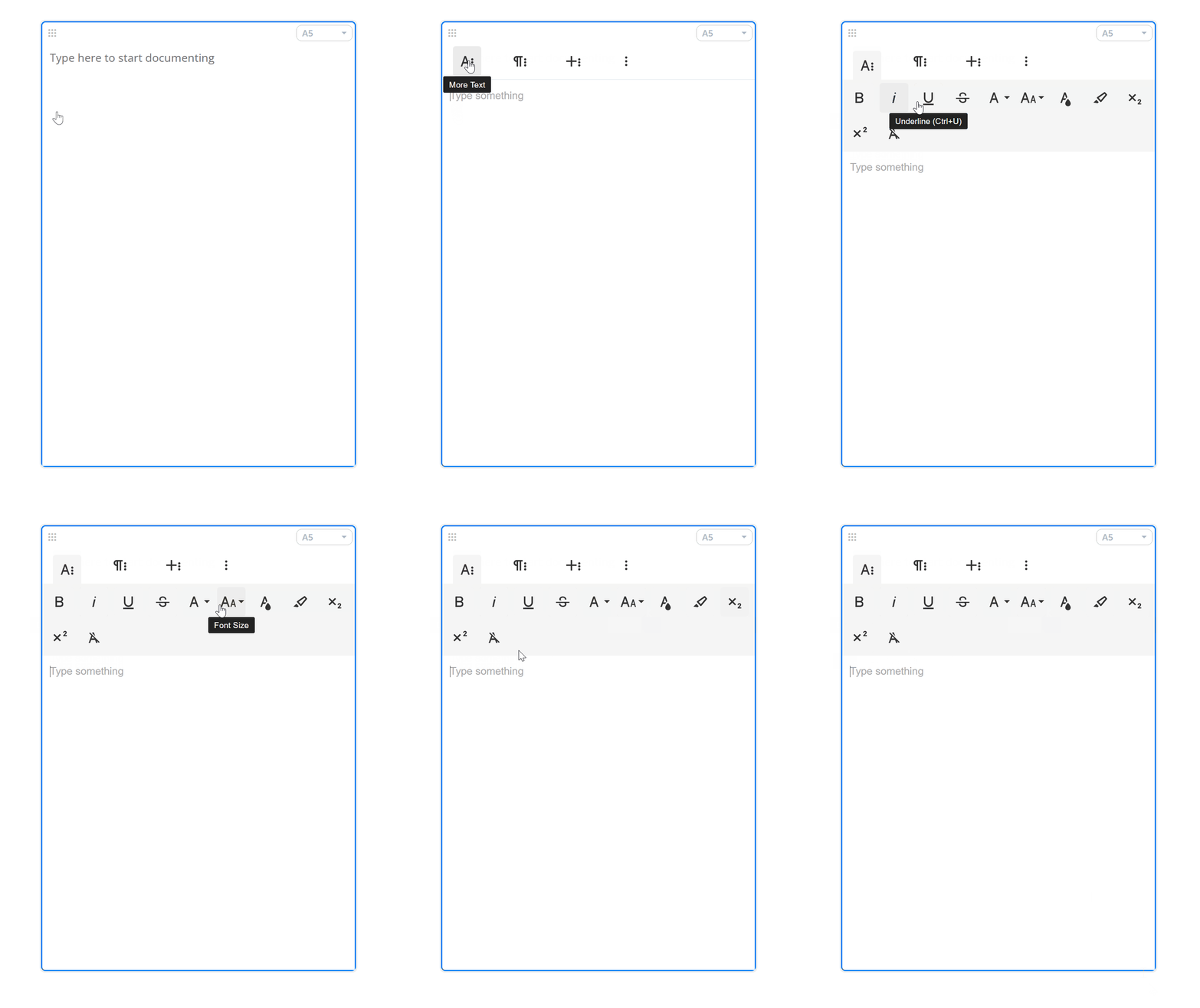
6\. The document can be used much like a word document and can be **edited** at anytime.
### Formatting a document
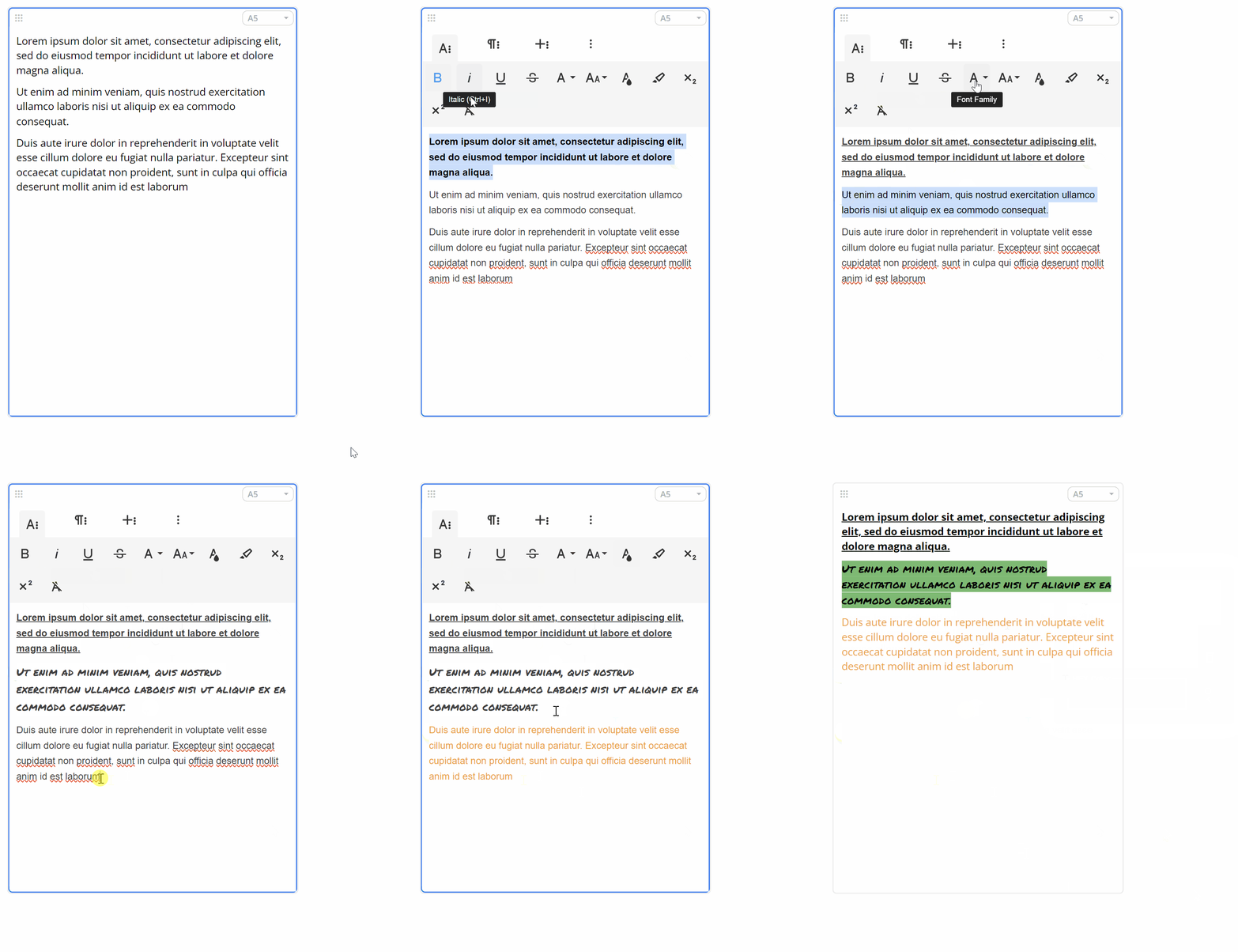
The document creator has formatting options that allow you to so that you can customise it.
You can access formatting options for your text by clicking on the **A icon**. This will allow you to make your text bold, italicized, underlined, or strikethrough. You can also change the font size, style, and color, highlight text with different colors, and add superscripts or subscripts.
You can undo all the formatting using the last setting when the text is highlighted.
Using the different style options, you can enhance the look of your document, make it easier to read and reflect your brand.
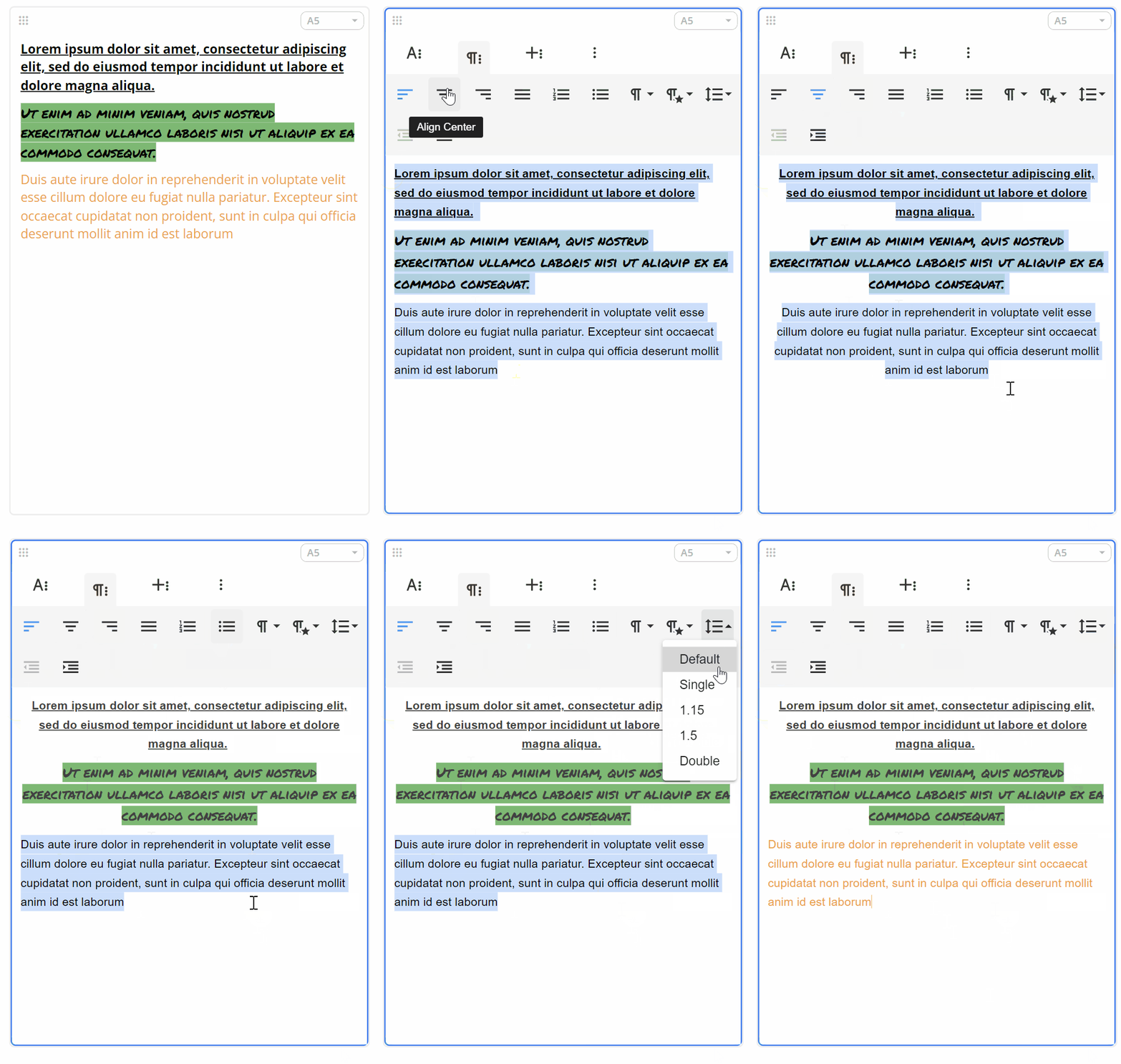
To change the **text layou**t, choose the **paragraph icon**, second on the left. There, you will be able to adjust text alignment, add different types of lists, change paragraph format, style, and spacing and add/remove indent.
### Inserting Media into the Document
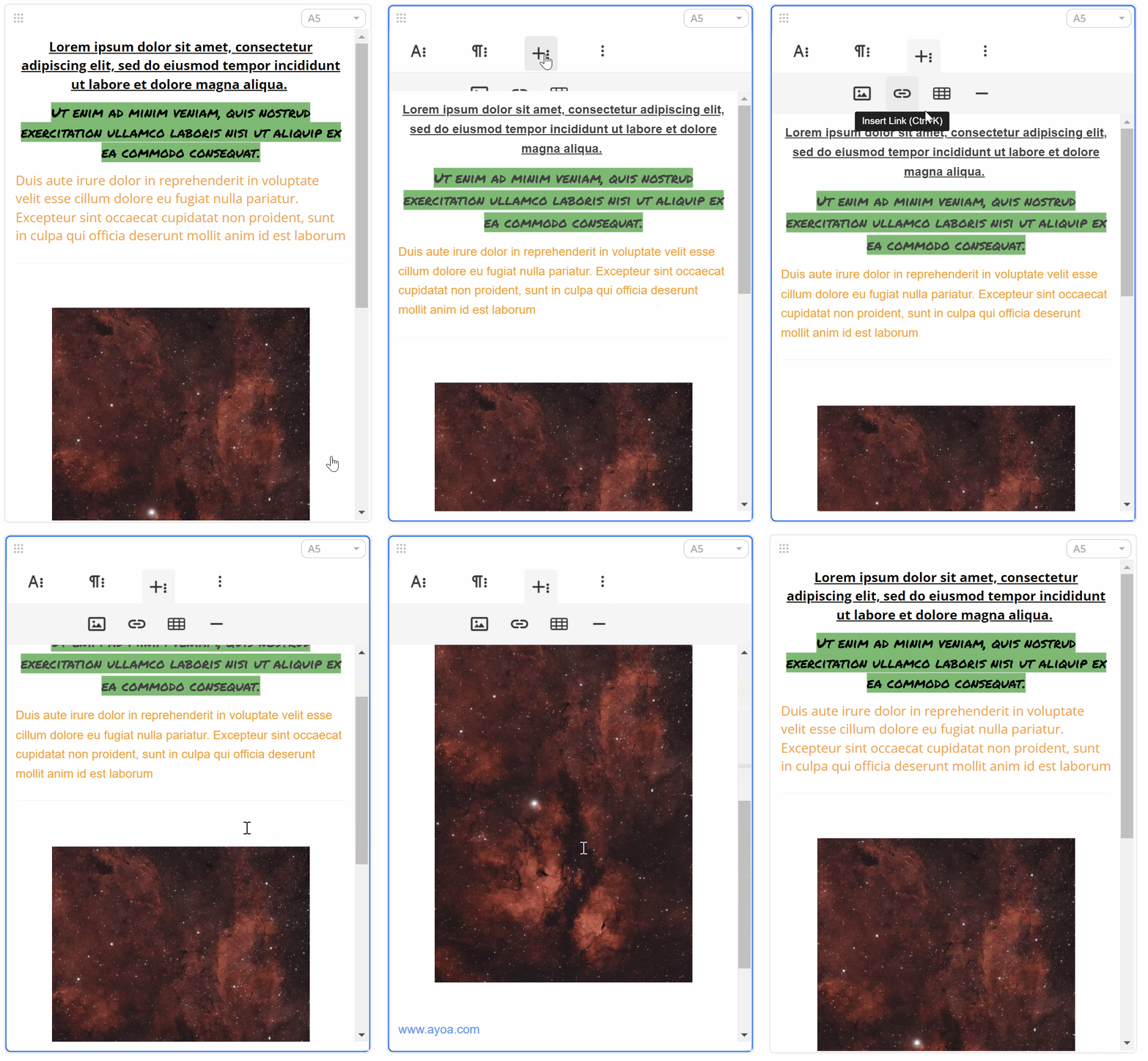
You can communicate more information by inserting images, links, tables or horizontal lines. By combining different styles and adding different media content, you can make dynamic documents and easily convey your ideas.
These can be added when clicking on the **plus** icon.
### Locking the Document
If you don't want any other board members to be able to edit the document, you can lock it.
You can lock a document by clicking on it and in the top toolbar selecting the **3-dot** icon. A popup window will be shown with a **lock** option.
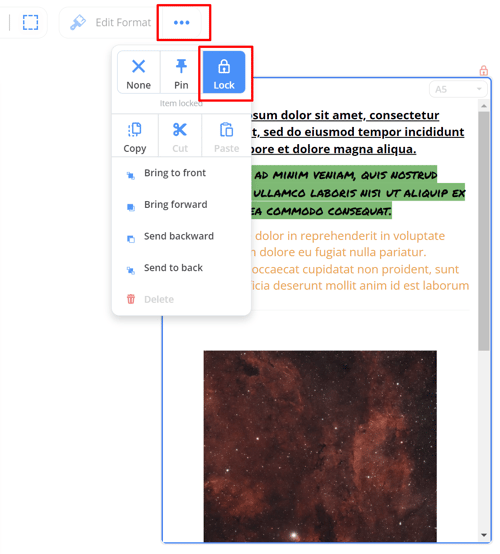
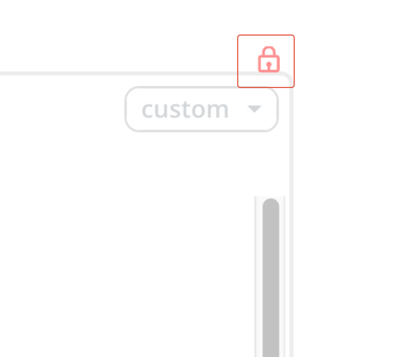
When the document is locked the **padlock** icon will be visible in the top right-hand corner.
### Deleting the Document
1\. Select the document you wish to delete and click on the **3-dot** icon in the top toolbar.
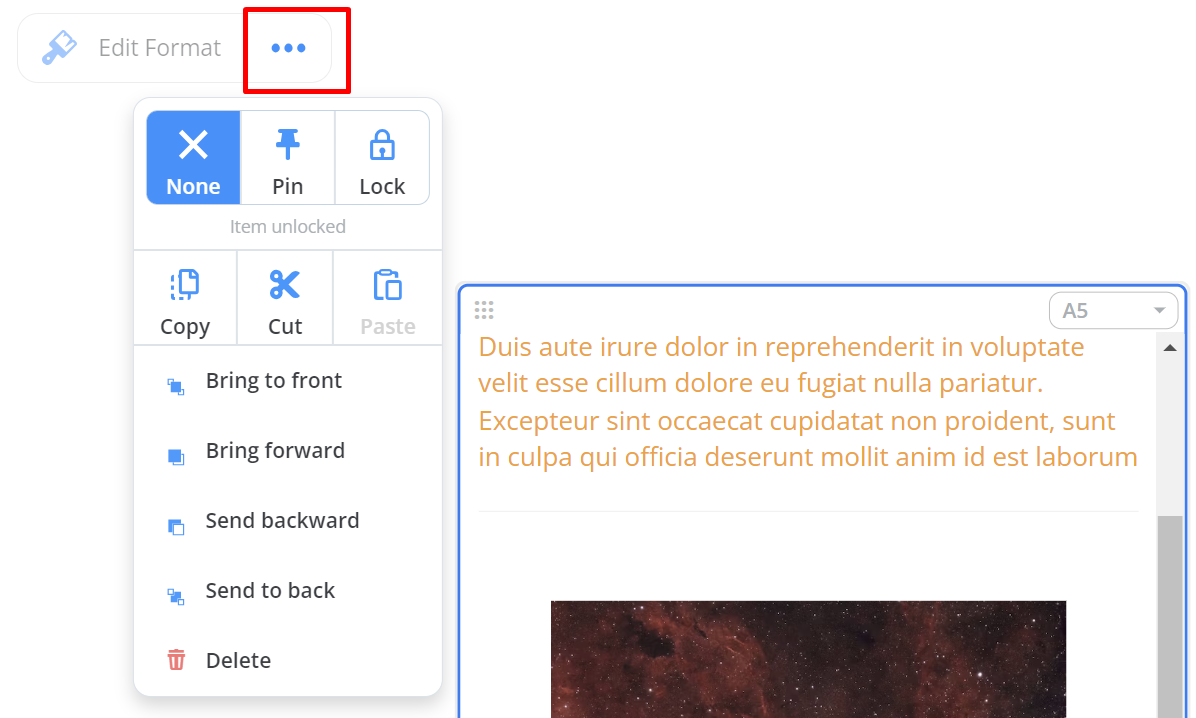
3\. Select **Delete**.

4\. The document will be deleted. If you deleted it by accident, click the **undo button** as soon as possible.

Do not close the page before clicking **undo**. If you close the page before clicking undo, you will **not** be able to restore the document.
- [Accessing AYOA](https://support.ayoa.com/accessing-ayoa?hsLang=en)
- [My AYOA Account](https://support.ayoa.com/my-ayoa-account?hsLang=en#main-content)
- [My Preferences](https://support.ayoa.com/my-ayoa-account?hsLang=en#my-preferences)
- [Managing your AYOA subscription](https://support.ayoa.com/my-ayoa-account?hsLang=en#managing-your-ayoa-subscription)
- [AYOA Team Plans](https://support.ayoa.com/ayoa-team-plans?hsLang=en)
- [AYOA Mobile](https://support.ayoa.com/ayoa-mobile?hsLang=en#main-content)
- [Account Management - Mobile](https://support.ayoa.com/ayoa-mobile?hsLang=en#account-management-mobile)
- [Ayoa Chat - Mobile](https://support.ayoa.com/ayoa-mobile?hsLang=en#ayoa-chat-mobile)
- [Mind Maps - Mobile](https://support.ayoa.com/ayoa-mobile?hsLang=en#mind-maps-mobile)
- [Task Boards and My Planner - Mobile](https://support.ayoa.com/ayoa-mobile?hsLang=en#task-boards-and-my-planner-mobile)
- [Whiteboards- Mobile](https://support.ayoa.com/ayoa-mobile?hsLang=en#whiteboards-mobile)
- [AYOA Chat](https://support.ayoa.com/ayoa-chat?hsLang=en)
- [Mind Maps](https://support.ayoa.com/mind-maps?hsLang=en#main-content)
- [Getting started with Mind Mapping in AYOA](https://support.ayoa.com/mind-maps?hsLang=en#getting-started-with-mind-mapping-in-ayoa)
- [How to use Mind Maps on the Web / Desktop](https://support.ayoa.com/mind-maps?hsLang=en#how-to-use-mind-maps-on-the-web-desktop)
- [Radial Maps](https://support.ayoa.com/mind-maps?hsLang=en#radial-maps)
- [Capture Maps](https://support.ayoa.com/mind-maps?hsLang=en#capture-maps)
- [iMindMap](https://support.ayoa.com/mind-maps?hsLang=en#imindmap)
- [Accessibility](https://support.ayoa.com/mind-maps?hsLang=en#accessibility)
- [AI](https://support.ayoa.com/ai?hsLang=en#main-content)
- [AI imports and prompts](https://support.ayoa.com/ai?hsLang=en#ai-imports-and-prompts)
- [AI Assistant](https://support.ayoa.com/ai?hsLang=en#ai-assistant)
- [Imports and Exports](https://support.ayoa.com/imports-and-exports?hsLang=en#main-content)
- [Imports](https://support.ayoa.com/imports-and-exports?hsLang=en#imports)
- [Exports](https://support.ayoa.com/imports-and-exports?hsLang=en#exports)
- [Task Management](https://support.ayoa.com/task-management?hsLang=en#main-content)
- [Task Boards](https://support.ayoa.com/task-management?hsLang=en#task-boards)
- [Workflow / Kanban](https://support.ayoa.com/task-management?hsLang=en#workflow-kanban)
- [Canvas](https://support.ayoa.com/task-management?hsLang=en#canvas)
- [Gantt Timeline](https://support.ayoa.com/task-management?hsLang=en#gantt-timeline)
- [Task Management](https://support.ayoa.com/task-management?hsLang=en#task-management)
- [Whiteboards](https://support.ayoa.com/whiteboards?hsLang=en#main-content)
- [Whiteboards](https://support.ayoa.com/whiteboards?hsLang=en#whiteboards)
[](https://ayoa.com)
[Get started for free](https://auth.ayoa.com/signup?email=)
[AYOA privacy policy](https://www.ayoa.com/privacy-policy/)
[Got a suggestion?](https://share-eu1.hsforms.com/1xuRuRa85Q-e8ya52b55HQwf4wbn)
[Our customers](https://www.ayoa.com/ourcustomers/)
Copyright © 2026, OpenGenius Ltd.